> ## Documentation Index
> Fetch the complete documentation index at: https://docs.revolv3.com/llms.txt
> Use this file to discover all available pages before exploring further.
# Quick Start
> Set up Revolv3 as a payment provider in Shopify and activate payments.
## Quick Start
To get started with Revolv3 as a payment provider:
1. Install the Revolv3 payment app in Shopify
2. Log in to Revolv3 portal when prompted
3. Add your store domain
4. Activate the payment provider in Shopify
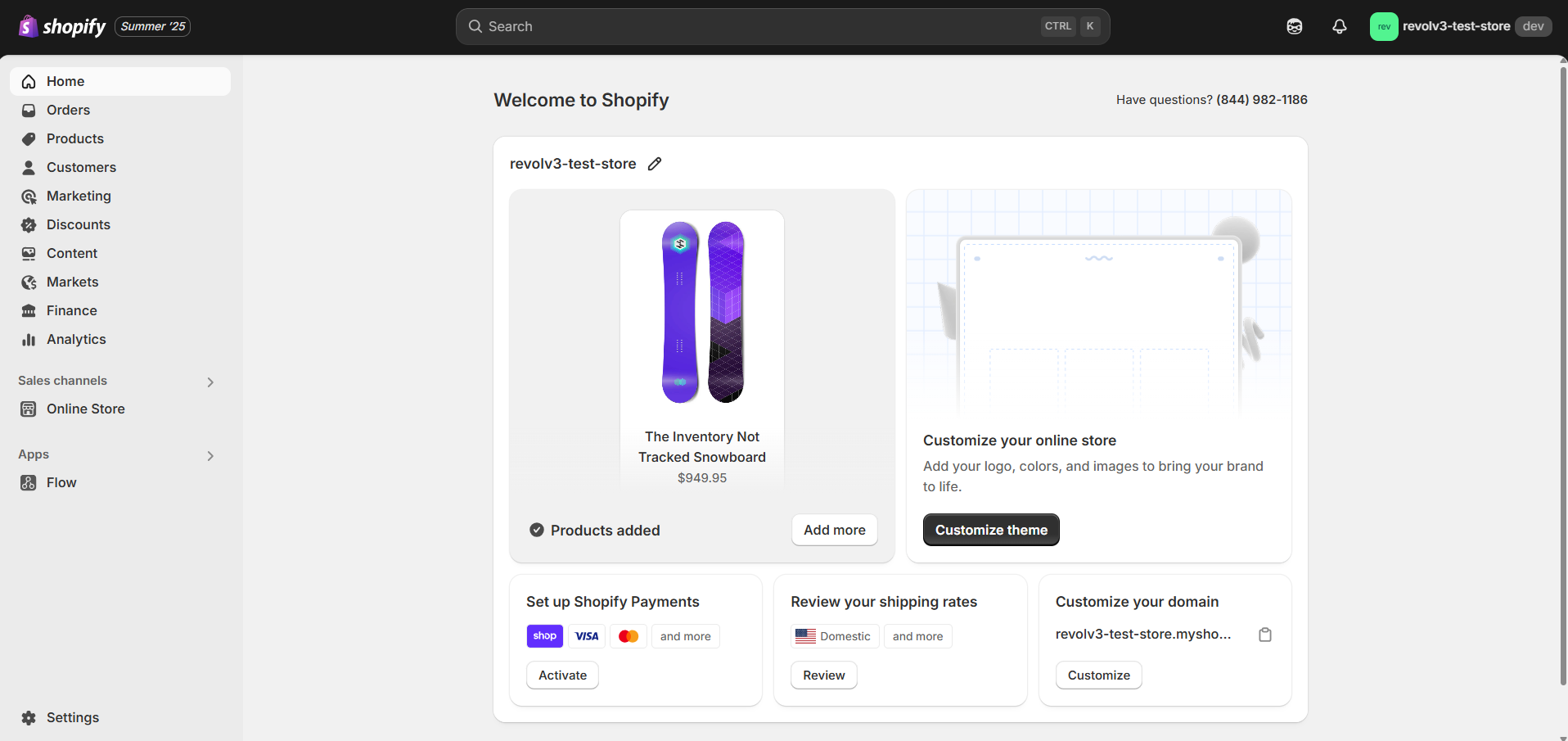
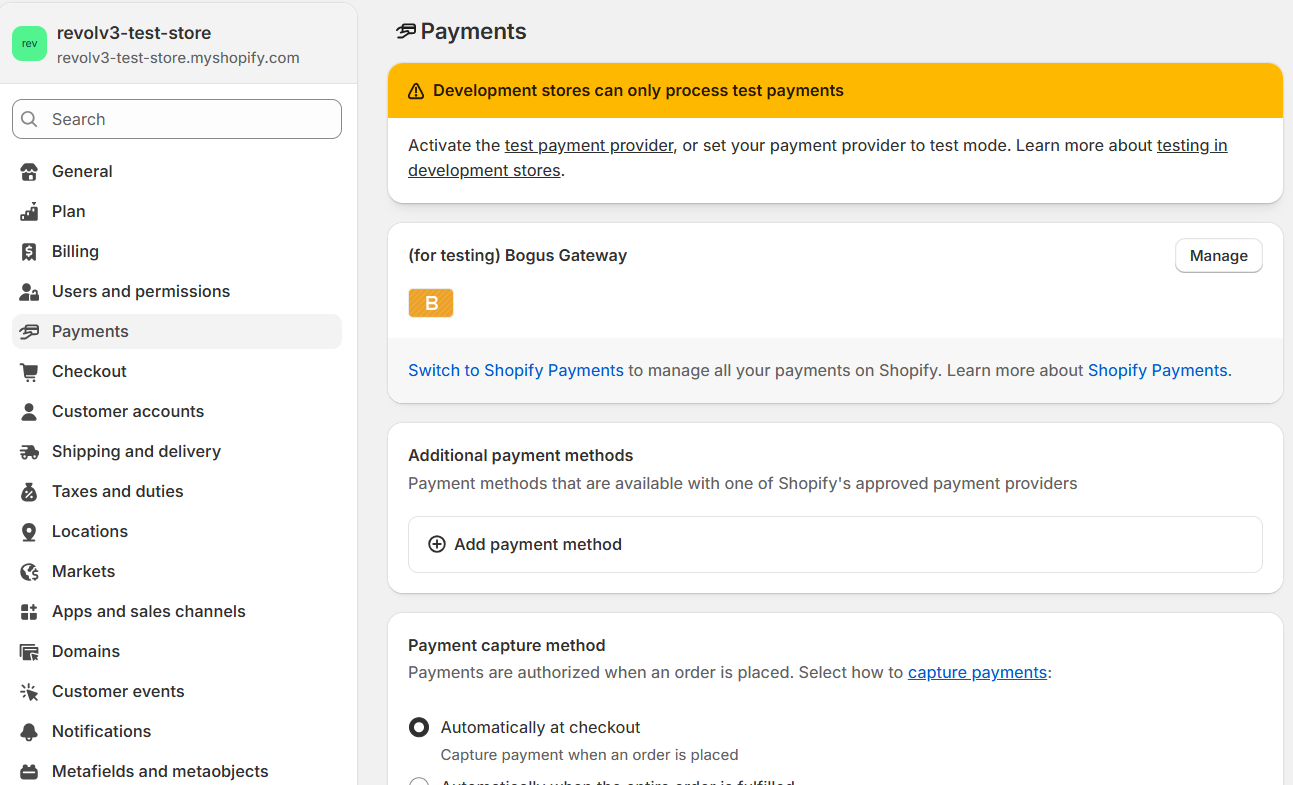
### Step 1: Open Payment Settings
From Shopify Admin:
* Log in to your Shopify Admin
* Go to **Settings → Payments**
 ### Step 2: Add Revolv3
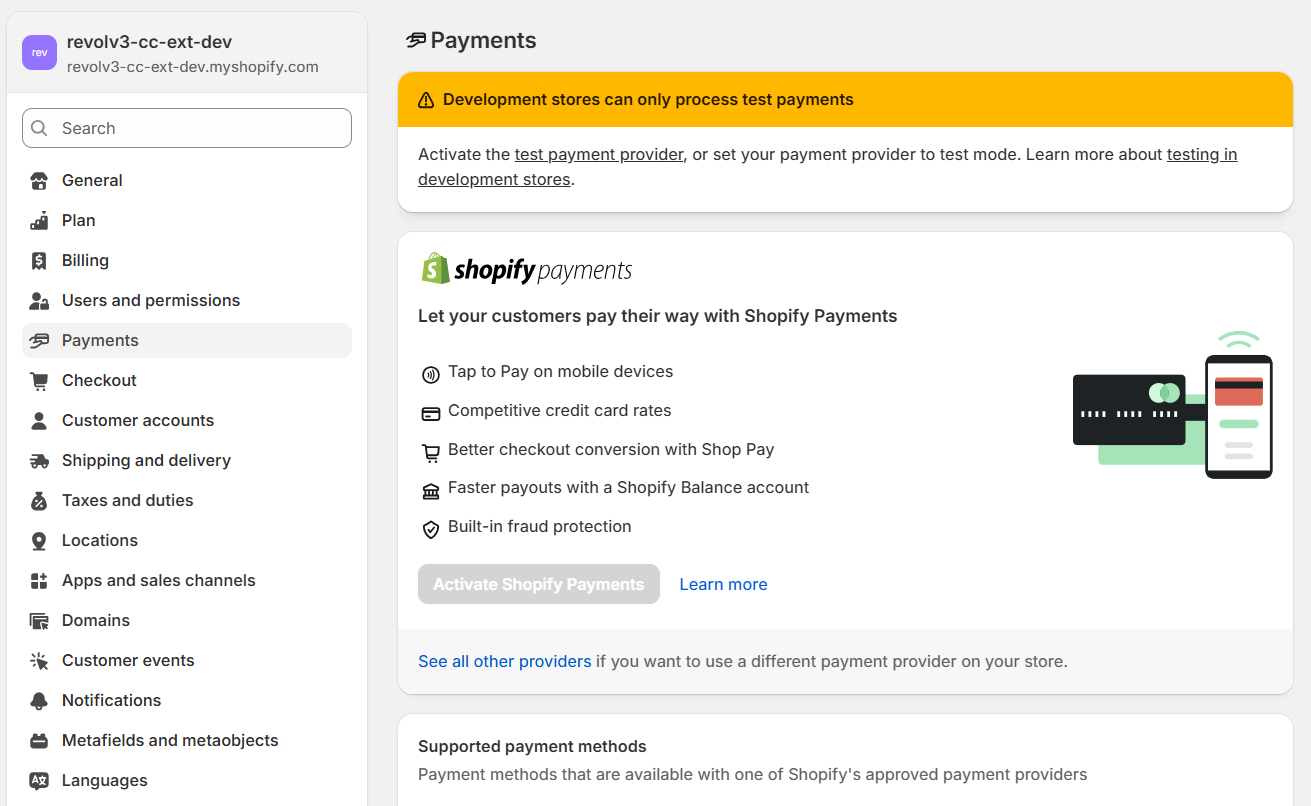
* Click **See all providers**
* Search for **Revolv3**
* Select it as your payment provider
### Step 2: Add Revolv3
* Click **See all providers**
* Search for **Revolv3**
* Select it as your payment provider
 ### Step 3: Connect Your Account
* Grant required permissions. You must grant Revolv3 access to read and write payment sessions
* You will be redirected to Revolv3
* Log in to your Revolv3 account. You need to log in and specify your store's domain in the merchant settings
* Add your store domain
### Step 4: Activate Payments
* Return to Shopify
* Click **Activate**
### Step 3: Connect Your Account
* Grant required permissions. You must grant Revolv3 access to read and write payment sessions
* You will be redirected to Revolv3
* Log in to your Revolv3 account. You need to log in and specify your store's domain in the merchant settings
* Add your store domain
### Step 4: Activate Payments
* Return to Shopify
* Click **Activate**
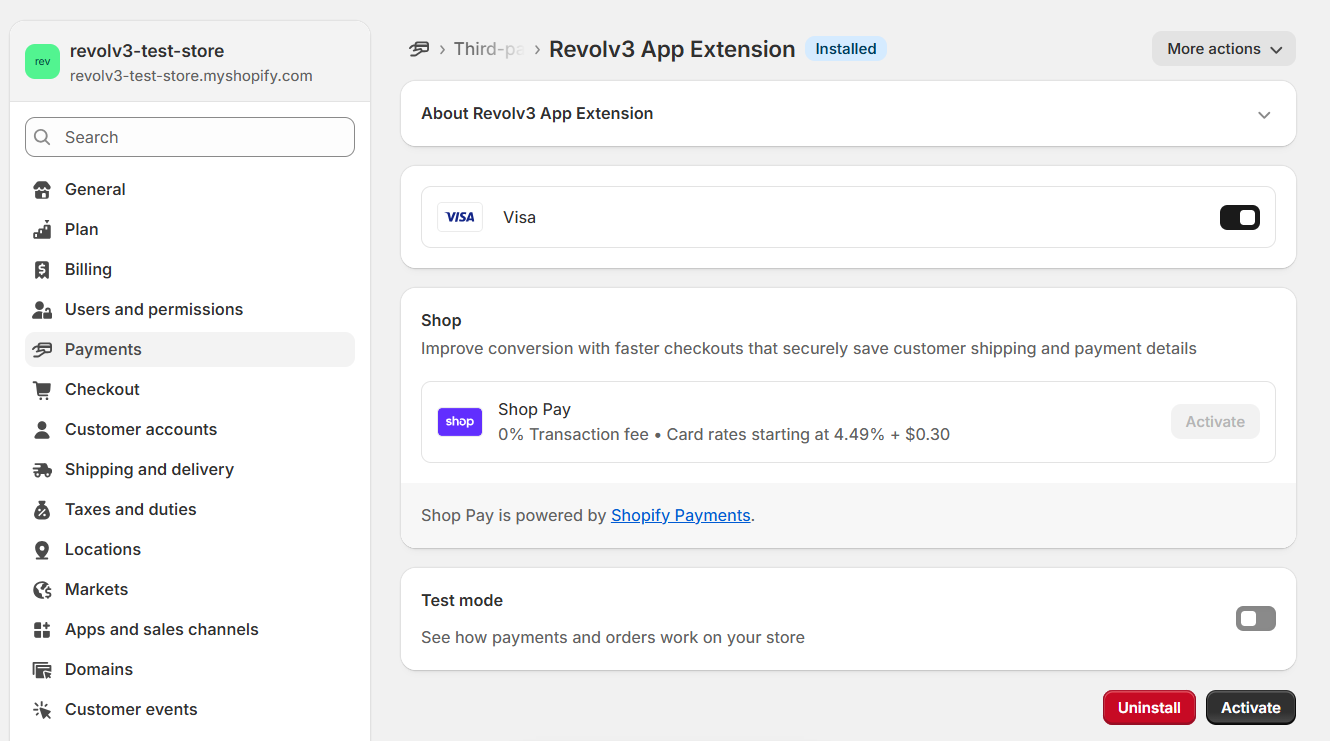 Your store is ready to accept payments.
### Important Note
You must complete the Revolv3 setup (including store domain configuration), otherwise the Activate button will remain disabled.
## Configuration
No manual configuration is required from the merchant side.
All technical setup, including:
* payment processing endpoints
* processor configuration
* security setup
is handled automatically by Revolv3 during onboarding and app installation.
Merchants only need to install and activate the Revolv3 payment app in Shopify.
## Backend Responsibilities
The Revolv3 backend handles:
* Processing payment session requests
* Processing refund session requests
* Mapping Shopify requests to Revolv3 API
* Handling processor communication
* Returning Shopify-compliant responses
## Testing
Once you’ve activated Revolv3 in Shopify, test the integration in the following environments:
* Shopify Partner Development Store
* Revolv3 Sandbox
* Shopify test card numbers
Then validate the integration behaves as expected for:
* Payment flow
* Refund flow
* Error handling
* Webhook processing
## Limitations
Current implementation limitations:
* Card payments only
* No 3DS support
* No auth/capture separation
* No void functionality
* No alternative payment methods
* No subscriptions
## Troubleshooting
### Common Issues
**Payment not processed**
* Check endpoint availability
* Verify API credentials
* Validate request schema
**Activation button disabled**
* Ensure store domain is configured in Revolv3
Your store is ready to accept payments.
### Important Note
You must complete the Revolv3 setup (including store domain configuration), otherwise the Activate button will remain disabled.
## Configuration
No manual configuration is required from the merchant side.
All technical setup, including:
* payment processing endpoints
* processor configuration
* security setup
is handled automatically by Revolv3 during onboarding and app installation.
Merchants only need to install and activate the Revolv3 payment app in Shopify.
## Backend Responsibilities
The Revolv3 backend handles:
* Processing payment session requests
* Processing refund session requests
* Mapping Shopify requests to Revolv3 API
* Handling processor communication
* Returning Shopify-compliant responses
## Testing
Once you’ve activated Revolv3 in Shopify, test the integration in the following environments:
* Shopify Partner Development Store
* Revolv3 Sandbox
* Shopify test card numbers
Then validate the integration behaves as expected for:
* Payment flow
* Refund flow
* Error handling
* Webhook processing
## Limitations
Current implementation limitations:
* Card payments only
* No 3DS support
* No auth/capture separation
* No void functionality
* No alternative payment methods
* No subscriptions
## Troubleshooting
### Common Issues
**Payment not processed**
* Check endpoint availability
* Verify API credentials
* Validate request schema
**Activation button disabled**
* Ensure store domain is configured in Revolv3